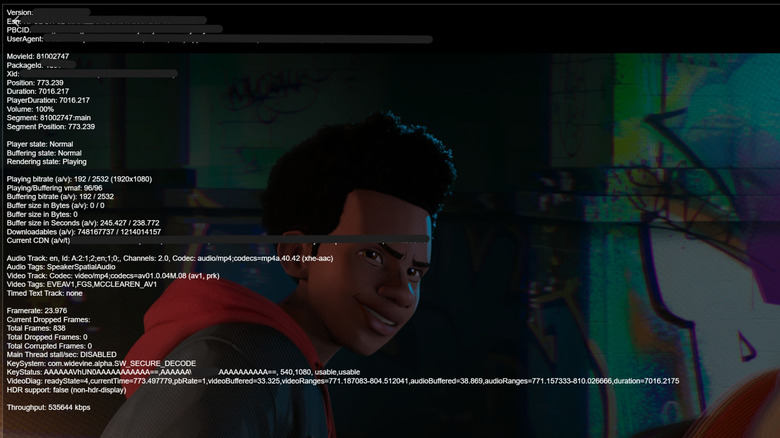
Netflix often reduces bitrate to avoid buffering, which can make a show look less sharp even on a 4K plan. The service includes hidden diagnostics that let you see exactly what resolution and frame rate are being delivered. On a Mac or Windows PC, press Ctrl + Alt + Shift + D while a title plays to pull up a stats overlay showing bitrate and fps. Mobile users can open the My Netflix tab, go to Settings → Playback Specification, and view the maximum quality the app can output. On most smart TVs, hitting the Info button on the remote—or attaching a Bluetooth keyboard and pressing F4—will display a brief stream summary.
Even if the stats show 4K, you need compatible hardware. A display must be native 4K and support HDCP 2.2; the GPU, cable, and operating system must handle HEVC (or AV1 once fully rolled out). Windows browsers require Edge or Chrome, while macOS needs Safari on an M1‑class Mac. iOS and most Android devices cap out at 1080p, with Google TV devices as the notable exception. Knowing these limits helps you pinpoint whether the bottleneck is your network, device, or Netflix itself.